
Picture this: you’re ready to dive into your favorite show or finish that important work project, but your Samsung tablet decides it’s time for a nap—one that it just won’t wake up from. Frustrating, right? Whether it’s refusing to turn on or just sitting there with a stubborn battery icon, this tech tantrum can leave anyone feeling helpless.
Common Causes for Samsung Tablet Won’t Turn On or Charge
Multiple factors contribute to a Samsung tablet refusing to turn on or charge. Identifying these issues can help users restore functionality quickly.
Battery Issues
Battery problems frequently cause tablets not to power up or charge. A completely drained battery often results in the device becoming unresponsive. Age-related degradation affects battery life, resulting in diminished capacity. Users should check for swelling or damage, as these indicate an urgent need for replacement. Keeping the battery charged between 20% and 80% extends its lifespan, reducing the likelihood of encountering power issues.
Charging Port Problems
Charging port issues can impede charging and device activation. Loose connections or debris within the port often prevent proper contact with the charger. Inspecting the charging port for dust and lint is essential. Sometimes, a damaged charging cable also results in ineffective charging. Trying different charging cables and adapters may reveal whether the issue lies with the accessories rather than the tablet.
Software Glitches
Software glitches occasionally cause Samsung tablets to become unresponsive. Corrupted updates or malfunctioning applications lead to this problem. Restarting the device might resolve temporary software issues. If the tablet remains unresponsive, performing a factory reset can help, but users should back up essential files first. Regularly updating software ensures optimal performance and minimizes the likelihood of glitches.
Troubleshooting Steps
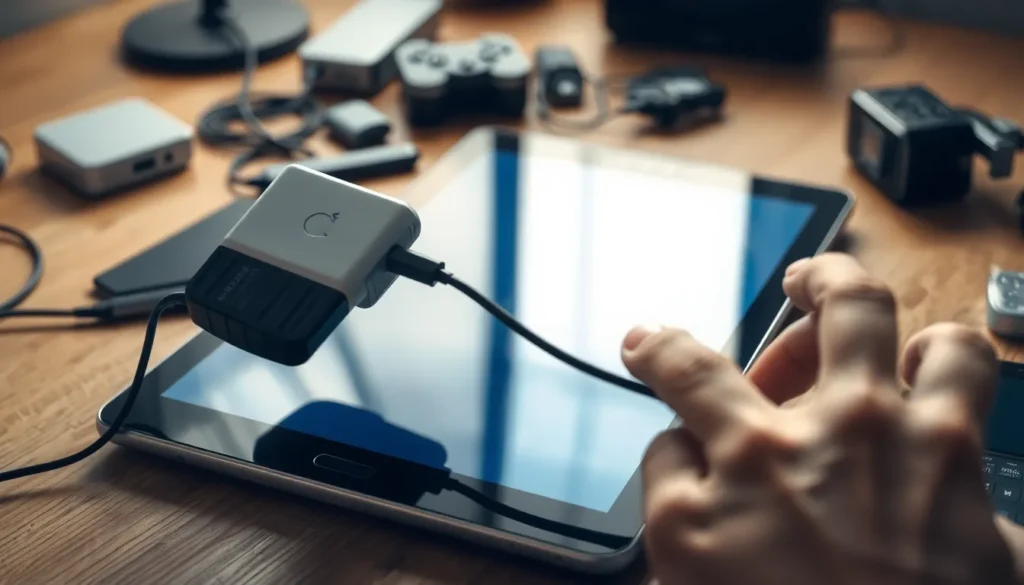

If a Samsung tablet won’t turn on or charge, following specific troubleshooting steps can lead to a solution.
Force Restart the Device
Try performing a force restart to resolve unresponsiveness. Press and hold the power button for about 10 seconds. This action typically resets the device and can restore functionality. If the screen remains blank, repeating the process a few times may help. Remember, a force restart often clears temporary glitches.
Check the Charger and Cable
Evaluating the charger and cable is crucial. Use the original charger for best results, as third-party chargers may not deliver adequate power. Inspect the cable for any visible damage or fraying. It’s important to test with a different charger if available, as faulty accessories can impede charging. Ensure the power source works by plugging in other devices.
Inspect the Charging Port
Examine the charging port for debris or damage. A clean port is essential for proper connection; use a soft brush or compressed air to remove any dust or lint. Verify that the port is not loose or damaged. Should issues persist, consider professional repair for a faulty charging port, which might hinder charging and activation. Cleanliness and integrity of the charging port impact functionality significantly.
Advanced Solutions
For users facing persistent issues with a Samsung tablet that won’t turn on or charge, advanced solutions can provide additional support.
Factory Reset the Tablet
Initiating a factory reset effectively restores the tablet to its original settings. To begin, hold down the power and volume up buttons until the recovery menu appears. Navigate through the options using the volume buttons, selecting “Wipe data/factory reset.” Confirm the action, which can rectify software-related problems causing the device to be unresponsive. Losing personal data during this process can occur, so backing up files beforehand is essential for safeguarding important information.
Update the Firmware
Updating the firmware offers a way to fix existing software issues. Locate the settings menu on the tablet, selecting “About tablet” followed by “Software update.” Ensuring the device is connected to a reliable Wi-Fi source facilitates the download process. Completing the update often resolves glitches that prevent the tablet from operating correctly. Regularly checking for updates ensures the tablet runs the latest software, maximizing performance and security.
Contacting Customer Support
Reaching out to Samsung customer support can provide invaluable assistance. Provide specific details about the issue and any troubleshooting steps already attempted. Customer support representatives can offer guidance tailored to the tablet model, which could lead to solutions not previously considered. If repair is necessary, they can direct users to accredited service centers, ensuring professional handling of the device. Timely support might expedite resolving complex issues hindering the tablet’s functionality.


